WA Health Summary

WAHS Explorer · OpenClinAI Research Sandbox

WAHS Explorer Sandbox Walkthrough

The WAHS Explorer sandbox has three steps: browse a multi-clinic FHIR R4 patient chart, condense it to a token budget between 256k and 1k, and run clinical tasks or questions against a connected model with citations that link back to the source records. Every setting is reflected in the page URL so configurations can be bookmarked or shared.

Section 1 · Connect a Model

Sign in to Cloud Med Agent Hub, or connect your own model server

Steps 1 and 2 run entirely in the browser without an account: all 10 patient charts, custom FHIR R4 bundle upload, and all 9 condensation budgets are available immediately. Step 3 generates summaries and answers questions against a connected model.

Default hosted connection: Cloud Med Agent Hub. No local installation is required.
  1. Open wahs-demo.openclinai.org.
  2. Open Settings (the gear icon in the top bar). Cloud Med Agent Hub is selected by default on the hosted site.
  3. Select Sign in with Google and sign in with an approved Google account.

To query the 13 models on the shared UW CIRG GPU server directly, without Med Agent Hub's clinical entity graph and overflow recovery, select UW GPU Server in Settings. The same Google sign-in applies.

Use a local model server or OpenRouter

Settings can also point the explorer at a model server on your own workstation or at OpenRouter. With every backend, each model appears once in the model selector, and the + 4-Layer KB / Raw Chart Only toggle in the top bar selects the prompt variant.

The commands below are run from a local checkout of the Med Agent Hub and OpenClinAI workspace.

Local Med Agent Hub with llama-router (ports 18081 and 8077)

This option runs the full Med Agent Hub stack locally. Model files are downloaded on demand to ~/.cache/llama-router-models.

  • Start the router: ./scripts/llama-router-up.sh
  • Start Med Agent Hub: docker compose -f compose/openmrs-2.8-refapp.yml up -d med-agent-hub
  • In Settings, select Local Med Agent Hub (:18081), or open http://localhost:18081/wahs/demo.

LM Studio (port 1235 or 1234)

  • Start the server with CORS enabled, ~/.lmstudio/bin/lms server start --port 1235 --cors, and set the context length to at least 16384.
  • To reuse a model file that llama-router has already downloaded, import it without copying: ~/.lmstudio/bin/lms import -y -L --user-repo unsloth/gemma-4-12B-it-GGUF ~/.cache/llama-router-models/gemma-4-12b.gguf
  • In Settings, select LM Studio.

llama-router (port 8077), Ollama (port 11434), or OpenRouter

  • llama-router: run ./scripts/llama-router-up.sh and select llama-router (:8077) in Settings.
  • Ollama: run OLLAMA_ORIGINS="*" OLLAMA_CONTEXT_LENGTH=16384 ollama serve and select Ollama (:11434) in Settings.
  • OpenRouter: select OpenRouter in Settings, enter your sk-or-v1-... key in the API key field, and select Apply.
  • When the hosted page at https://wahs-demo.openclinai.org connects to a local port, Chrome and Brave require the Local network access site permission, available from the address bar.

Section 2 · The Three Steps

Browse the chart, condense it, and generate with citations

Step 1

Browse the original FHIR R4 patient chart

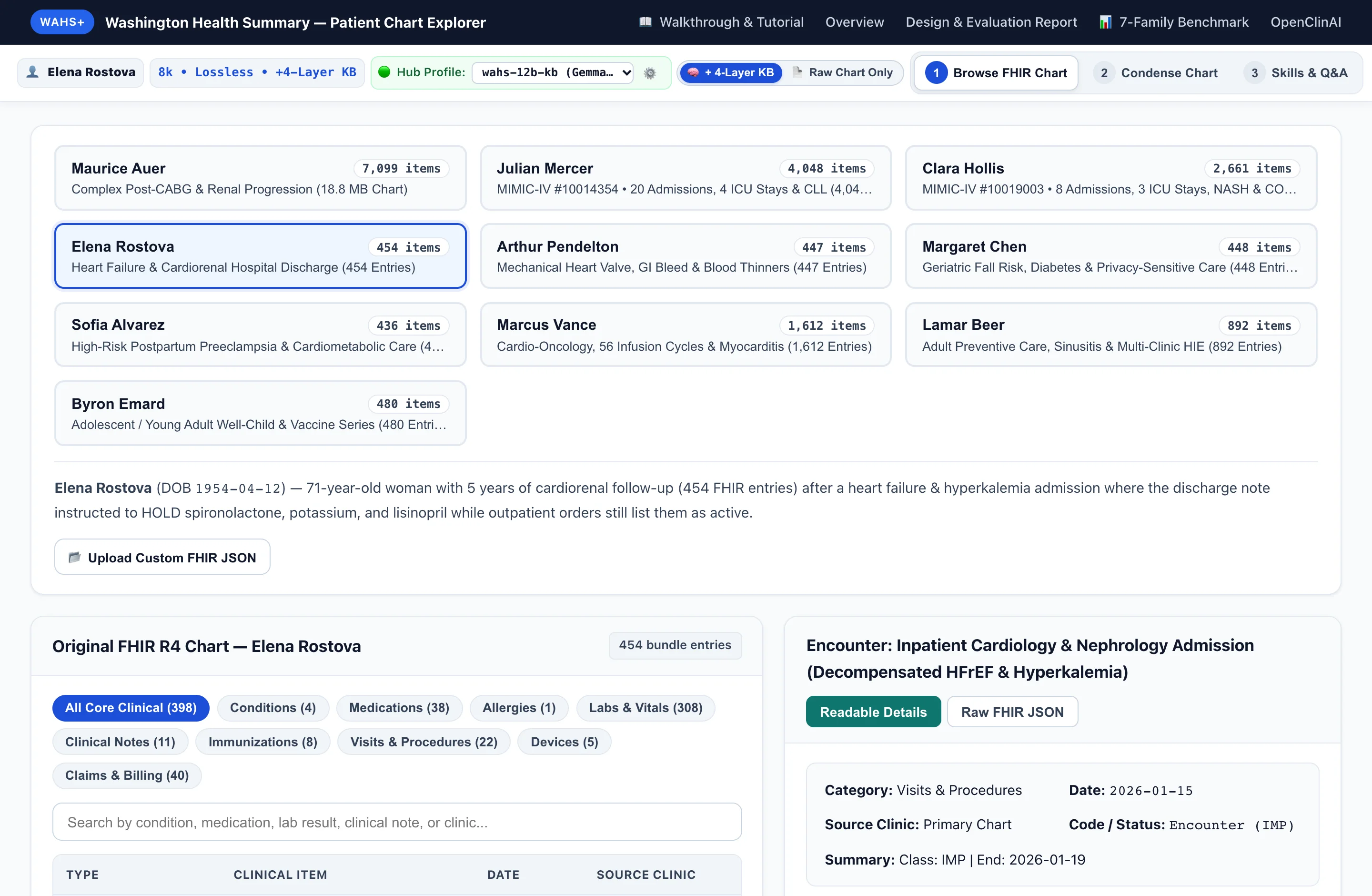
Select one of the 10 preloaded patient charts, or upload a FHIR R4 JSON bundle, to inspect the multi-clinic records before condensation.

  • The 10 charts (18 FHIR R4 bundles across dataset variants) comprise five multi-year US Core care-transition cases (Elena Rostova, Arthur Pendelton, Margaret Chen, Sofia Alvarez, Marcus Vance), three Synthea charts of up to 7,099 entries / 18.4 MB (Maurice Auer, Lamar Beer, Byron Emard), and two de-identified PhysioNet MIMIC-IV-FHIR Demo 2.0 hospital and ICU charts (Julian Mercer, Clara Hollis).
  • Resources can be filtered by category (Conditions, Medications, Allergies, Labs & Vitals, Clinical Notes, Immunizations, Visits & Procedures, Devices, Claims & Billing) and searched by text.
  • Selecting an entry shows a readable summary next to the original FHIR R4 JSON. Base64-encoded discharge summaries and progress notes are decoded automatically.
Step 1 showing the 10 patient chart cards, the category filters, and the two-pane FHIR R4 resource view.
Step 2

Condense the chart and check the context gauge

Choose how the chart is condensed into the text sent to the model, and see how much of the active model's context window that text uses.

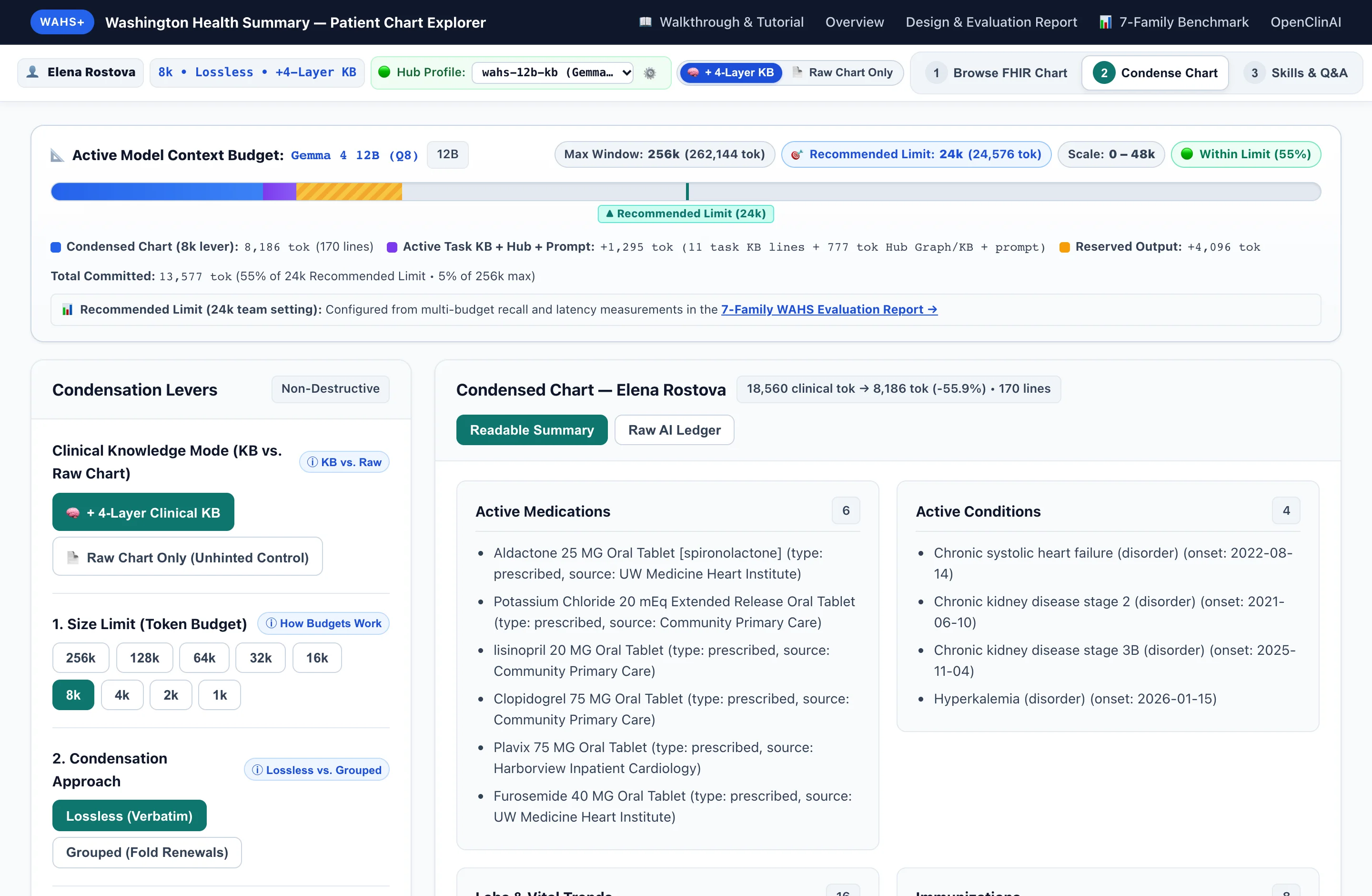
  • The context gauge shows the active model's maximum context window and its Recommended Limit. Both values come from the model profile; the scale is fixed for a given model so bar lengths can be compared across budgets.
  • Nine token budgets, from 256k down to 1k, are available in two condensation modes: Lossless (Verbatim) and Grouped (Fold Renewals). Both modes report the token reduction relative to the extracted clinical content and list any clinical items trimmed to fit the budget.
  • The + 4-Layer KB / Raw Chart Only toggle selects the knowledge mode. Optional sandbox filters in the Explorer remove non-clinical room equipment and preview experimental sensitivity redaction (42 CFR Part 2 / WA My Health My Data Act).
Step 2 showing the Active Model Context Budget gauge with its Recommended Limit marker, the condensation settings, and the condensed chart.
Step 3

Run clinical tasks, ask questions, and verify citations

Send the condensed chart and knowledge configuration from Step 2 to the connected model, then check each claim against its FHIR R4 source record.

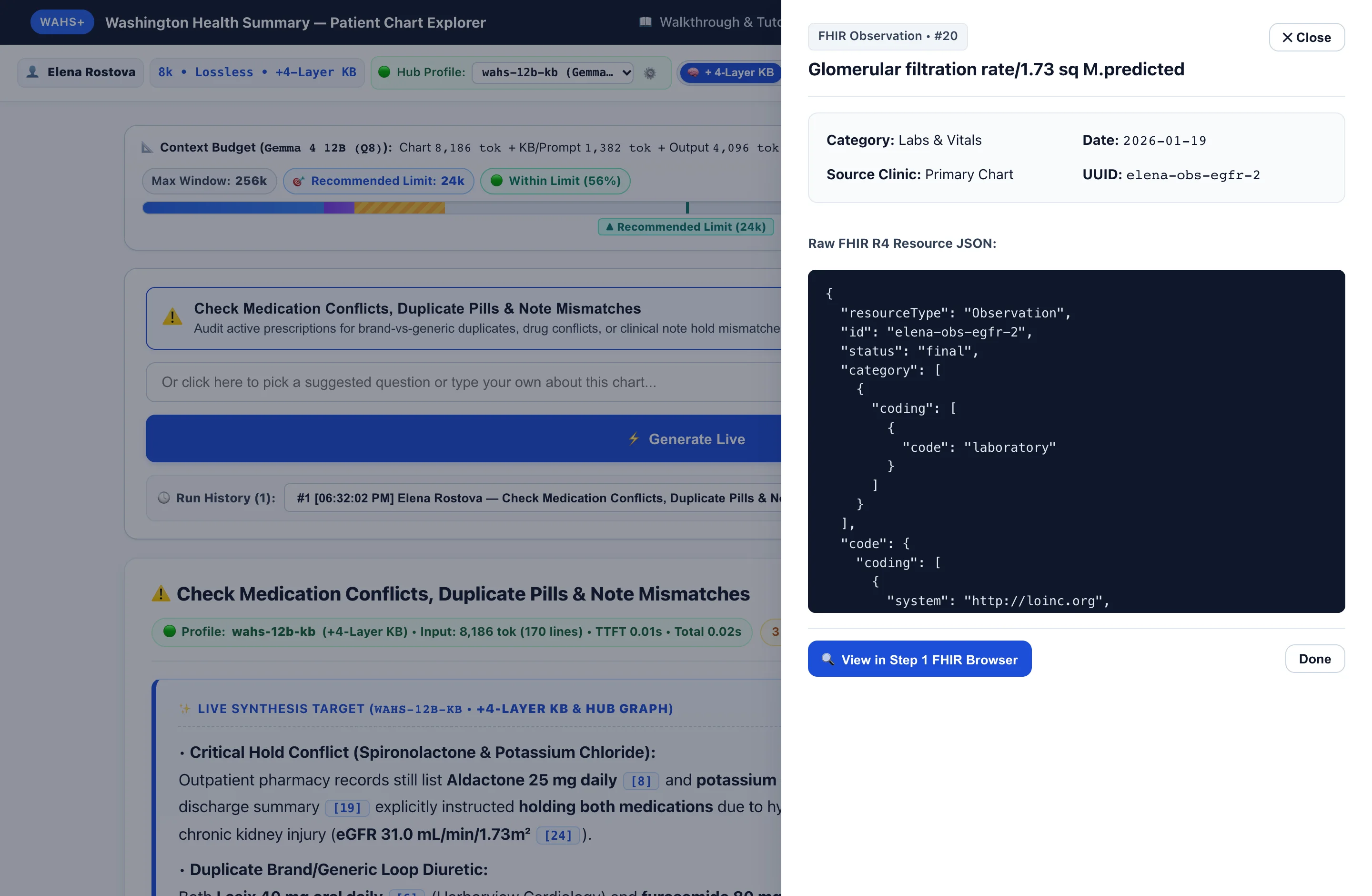
  • Select one of the nine clinical tasks from the task menu, or select the question box to browse and filter suggested questions or type your own. Then select Generate Live.
  • Each [N] citation in the output opens the source panel, which shows the cited observation, medication order, or decoded clinical note with its FHIR R4 JSON.
  • Run History lists earlier outputs from the session and can restore the Step 2 settings used for any of them. Advanced View, below the output, shows the prompt that was sent to the model.
Step 3 showing the compact context gauge, the task selector, a generated summary with citations, and the open FHIR R4 source panel.

Section 3 · Guided Experiments

Token budget, knowledge mode, and abstention

Each experiment requires a connected model (Section 1). The expected results below were recorded with the default wahs-12b-kb profile (Google Gemma 4 12B).

Experiment 1 · Token Budget

Compare an 8k budget with a 1k budget

Smaller budgets reduce prefill time at the cost of historical completeness. This experiment shows what the 1k budget removes from a 7,099-entry chart.

  1. In Step 1, select Maurice Auer (7,099 items).
  2. In Step 2, select 64k, 8k, and 1k in turn and compare the condensed-chart bar in the context gauge with the 24k Recommended Limit marker of the default profile.
  3. With 8k selected, go to Step 3, keep Prepare My Next Doctor Visit Summary selected, and select Generate Live. Note the input token and line counts on the result card.
  4. Return to Step 2, select 1k, and generate again in Step 3.
Expected result: At 1k, the chart is reduced from 251,641 extracted clinical tokens to about 902 tokens (15 lines). Over 2,400 items are trimmed, including 9 active conditions and 8 active medications. The trimmed-items panel in Step 2, and Advanced View in Step 3, list the omitted counts by category. Med Agent Hub uses these counts to retrieve question-relevant trimmed items on demand (Tier-0 overflow recovery).
Experiment 2 · Knowledge Mode

Compare + 4-Layer KB with Raw Chart Only

This experiment shows how deterministic clinical rules and the patient entity graph affect cross-clinic conflict detection with the same model.

  1. Select Elena Rostova (454 items) in Step 1 and 8k in Step 2.
  2. In Step 3, select the task Check Medication Conflicts, Duplicate Pills & Note Mismatches.
  3. With + 4-Layer KB selected in the top bar, select Generate Live.
  4. Switch the top-bar toggle to Raw Chart Only and generate again. Use Run History to switch between the two outputs.
Expected result: With Raw Chart Only, the model must identify on its own that the hospital discharge summary instructed holding the outpatient spironolactone and potassium chloride orders because of a potassium result of 5.7 mmol/L. With + 4-Layer KB, the reconciliation finding and the connected clinical subgraph are included in the prompt. Citation numbers follow the current condensed chart, so they differ between budgets and modes.
Experiment 3 · Citations & Abstention

Verify source citations and ask an unanswerable question

This experiment confirms that each clinical claim links to a FHIR resource, and that the model declines to answer when the chart does not contain the requested information.

  1. Continue with Elena Rostova and one of the outputs from Experiment 2. Select any [N] citation to open the source panel and compare the claim with the resource JSON.
  2. Select the question box in Step 3, type colonoscopy to filter the suggested questions, select Does this patient have a documented Penicillin allergy or recent colonoscopy?, and select Generate Live.
Expected result: Elena Rostova's chart contains no penicillin allergy and no colonoscopy. The response begins with an ABSTAIN: statement that the record was searched and no matching allergy or procedure exists. Arthur Pendelton and Lamar Beer do have colonoscopy entries, so the same question on those charts is answered with citations.

Section 4 · Reference & Reports

Evaluated model families and published evidence

Each model profile in Med Agent Hub carries its maximum context window and its Recommended Limit (GET /v1/models?workflow=wahs). The Explorer reads both values from the profile and shows them in the context gauge, while the top-bar toggle switches any model between + 4-Layer KB and Raw Chart Only.

Experimental research and demonstration software using synthetic and de-identified patient records. AI outputs and automated checks require human review and do not establish clinical safety or effectiveness.